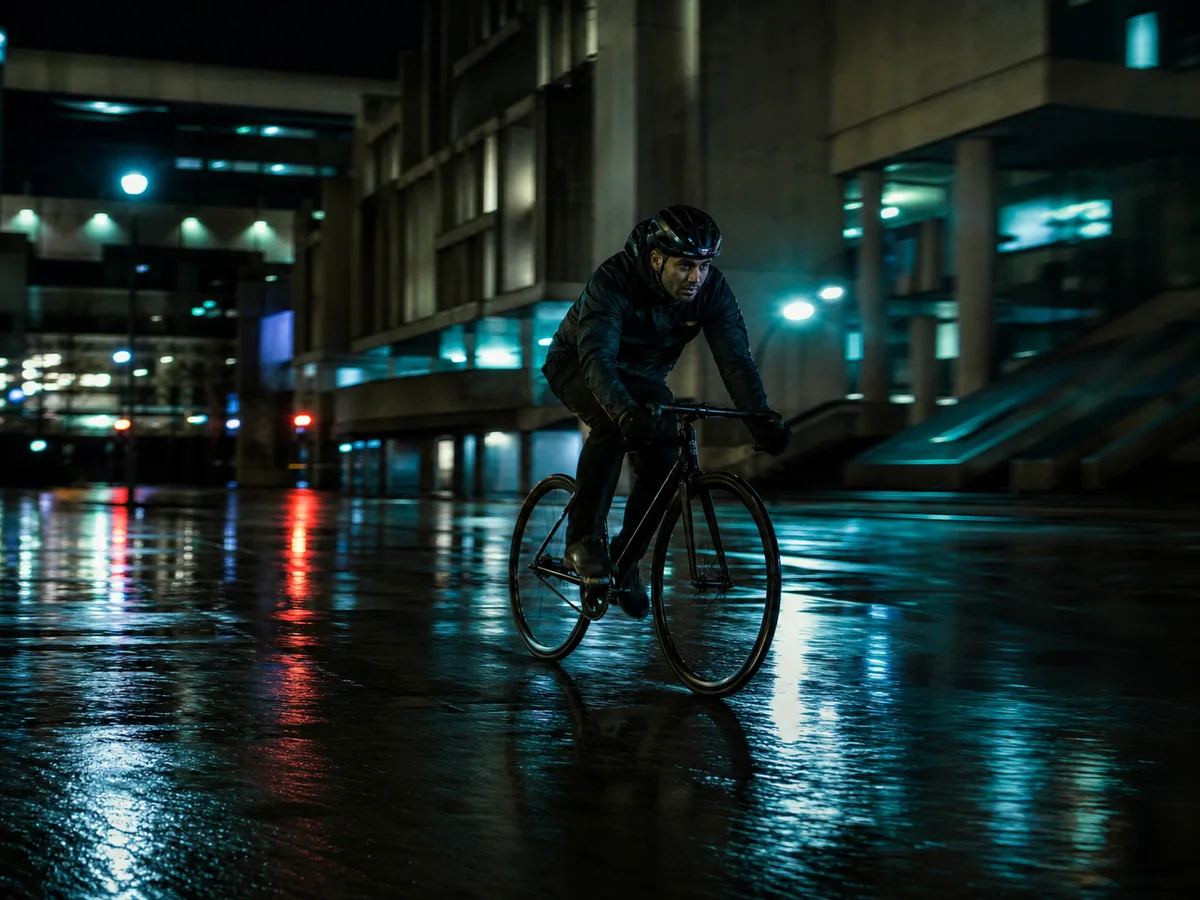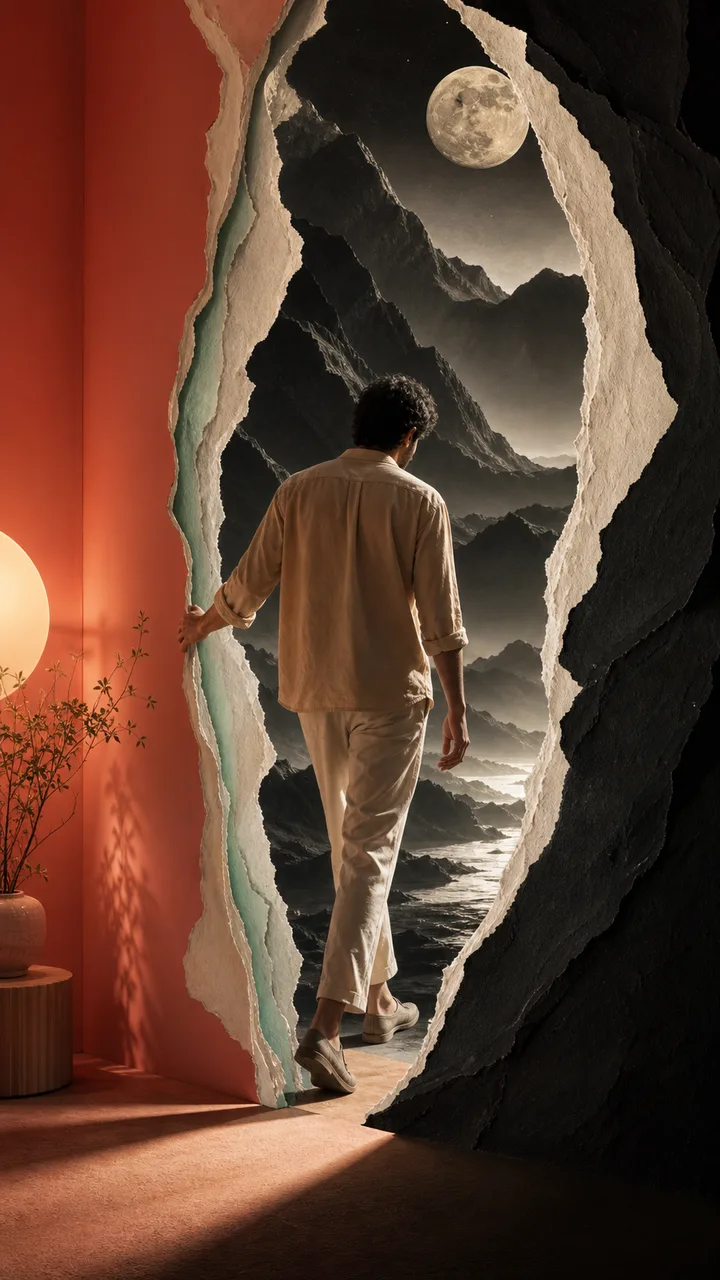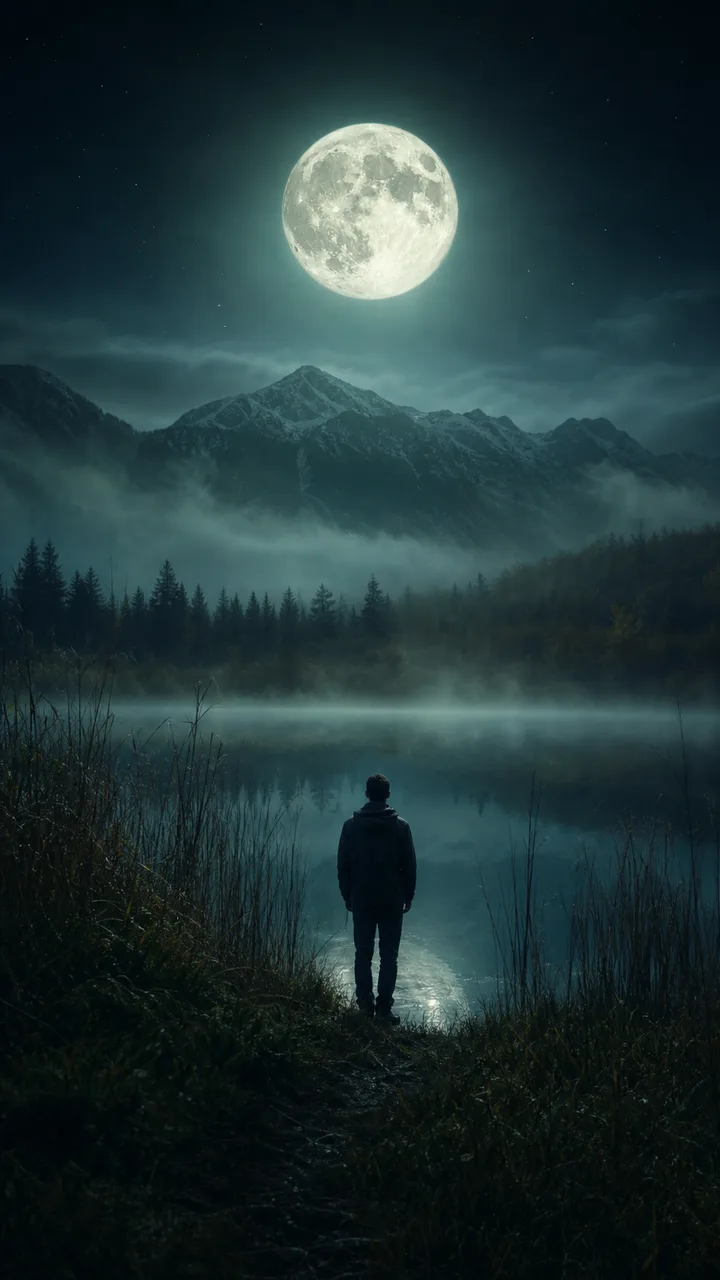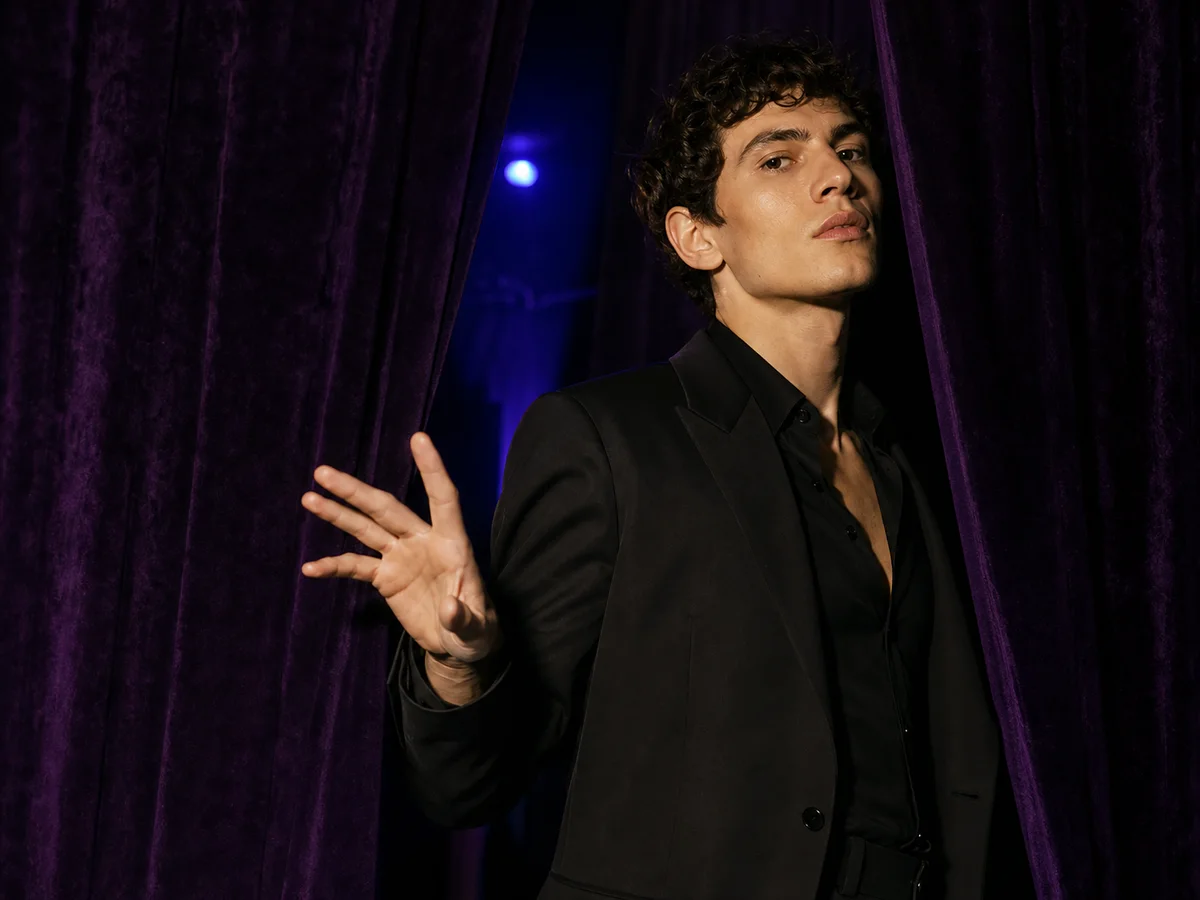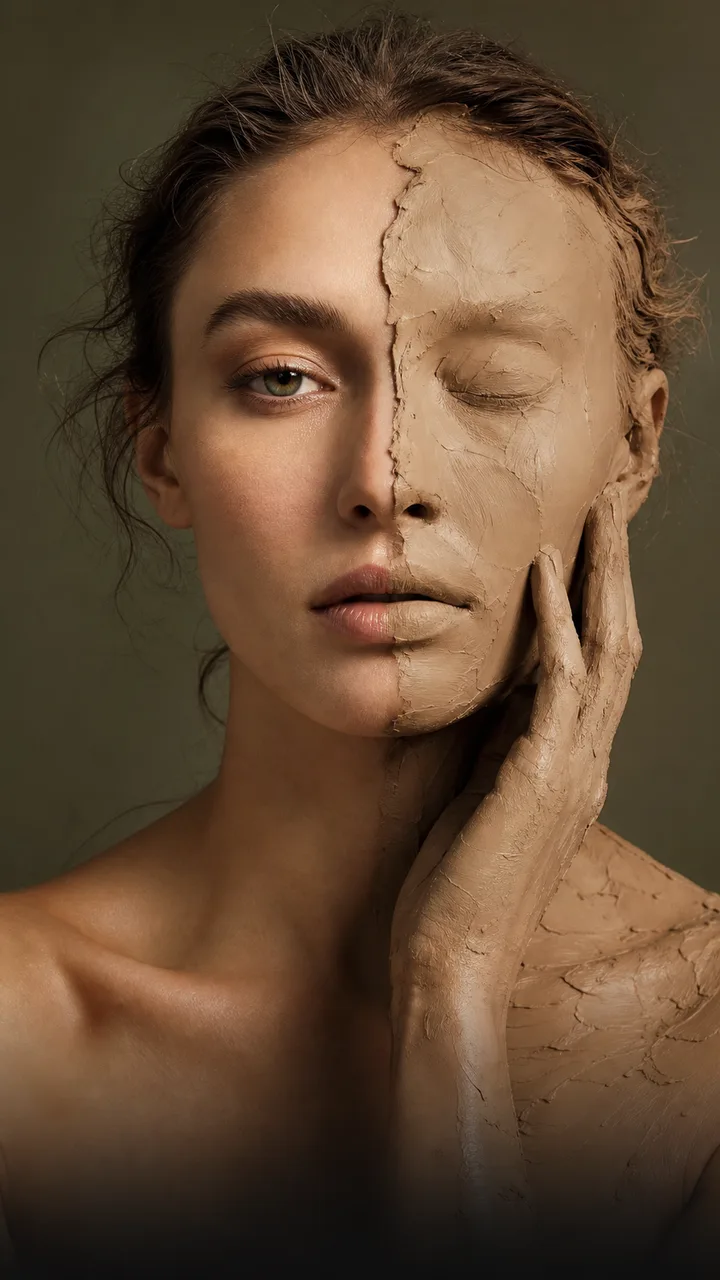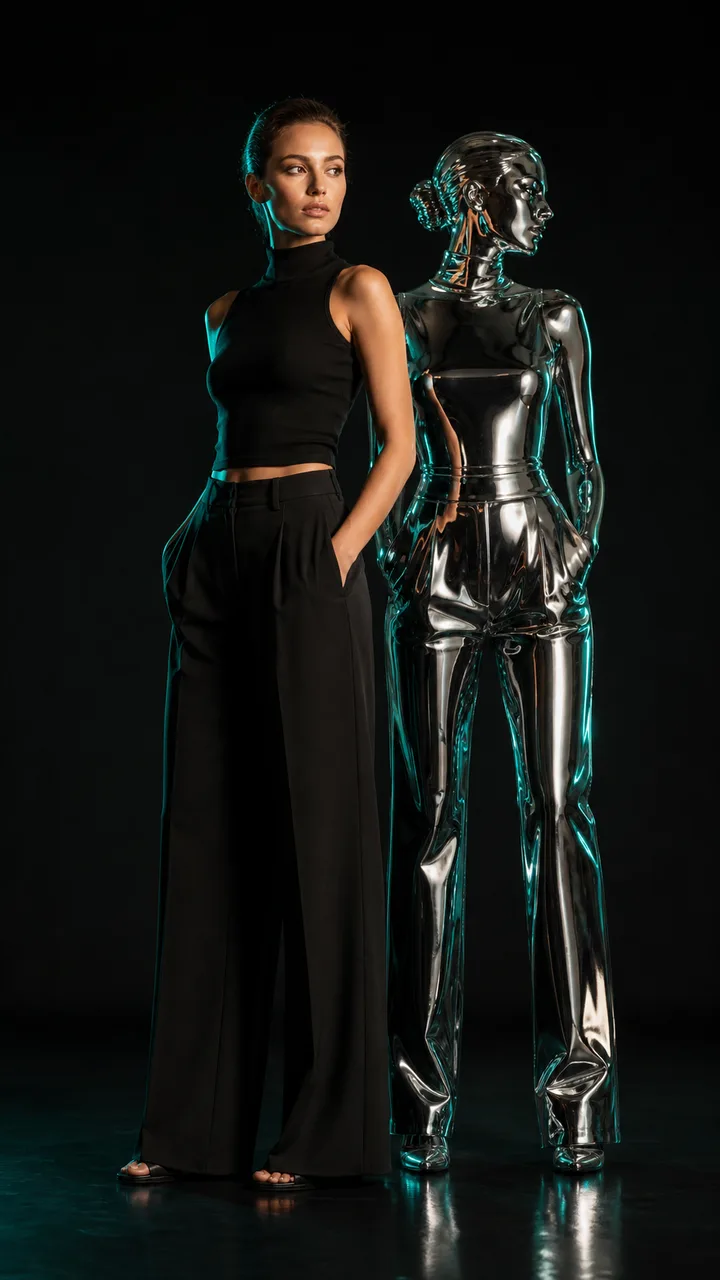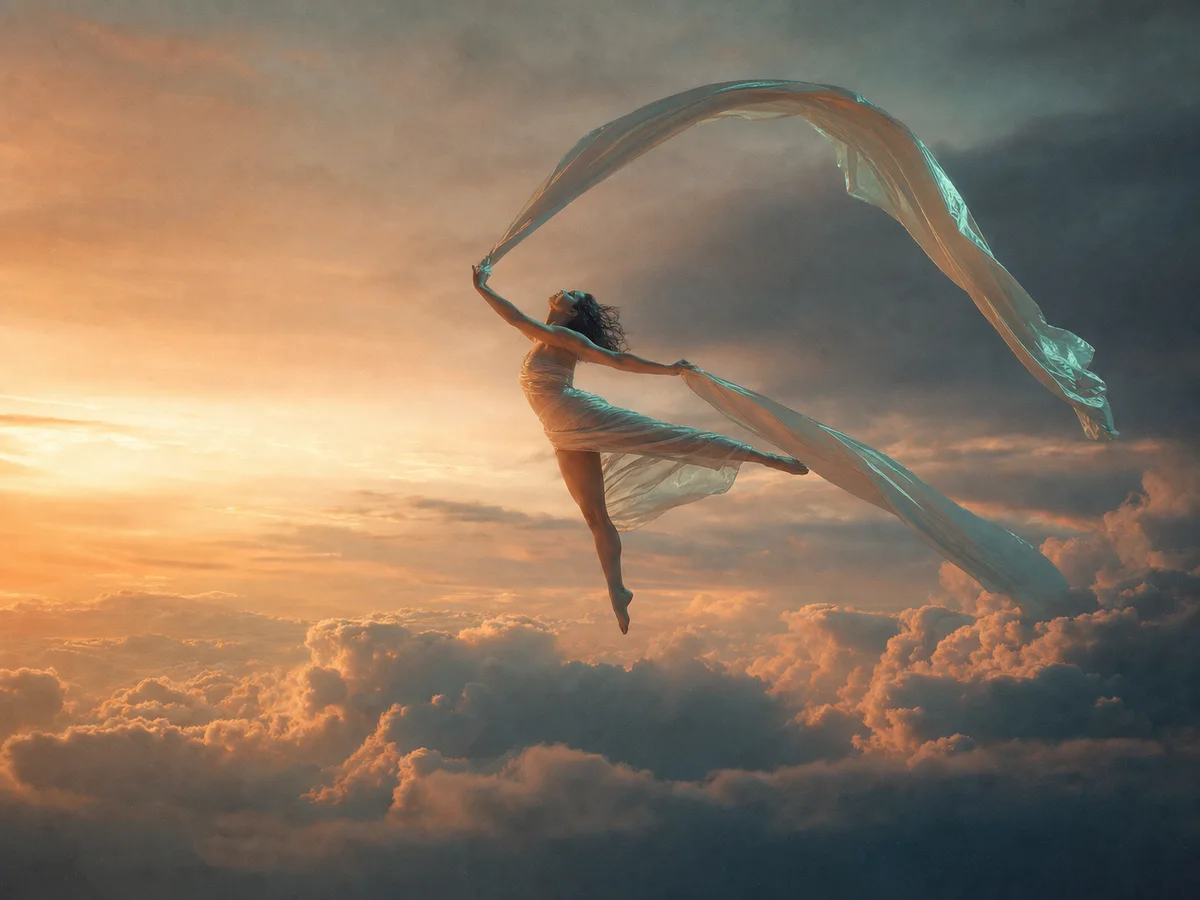
Skyward bloom
Lift a quiet portrait into a weightless sunrise study.
4:3·Editor pick
Curated motion studies
Browse original visual directions, choose a starting point, and shape the draft in yito Studio.
Model-aware Studio routing. Each card applies its motion prompt before Studio selects a compatible route from Seedance, Kling, Vidu, Wan, or Stable Video. You can review the model, inputs, duration, ratio, and credit quote before generating.
The next three keep the same path: upload a photo, read the credit quote, then generate.
21 effects found
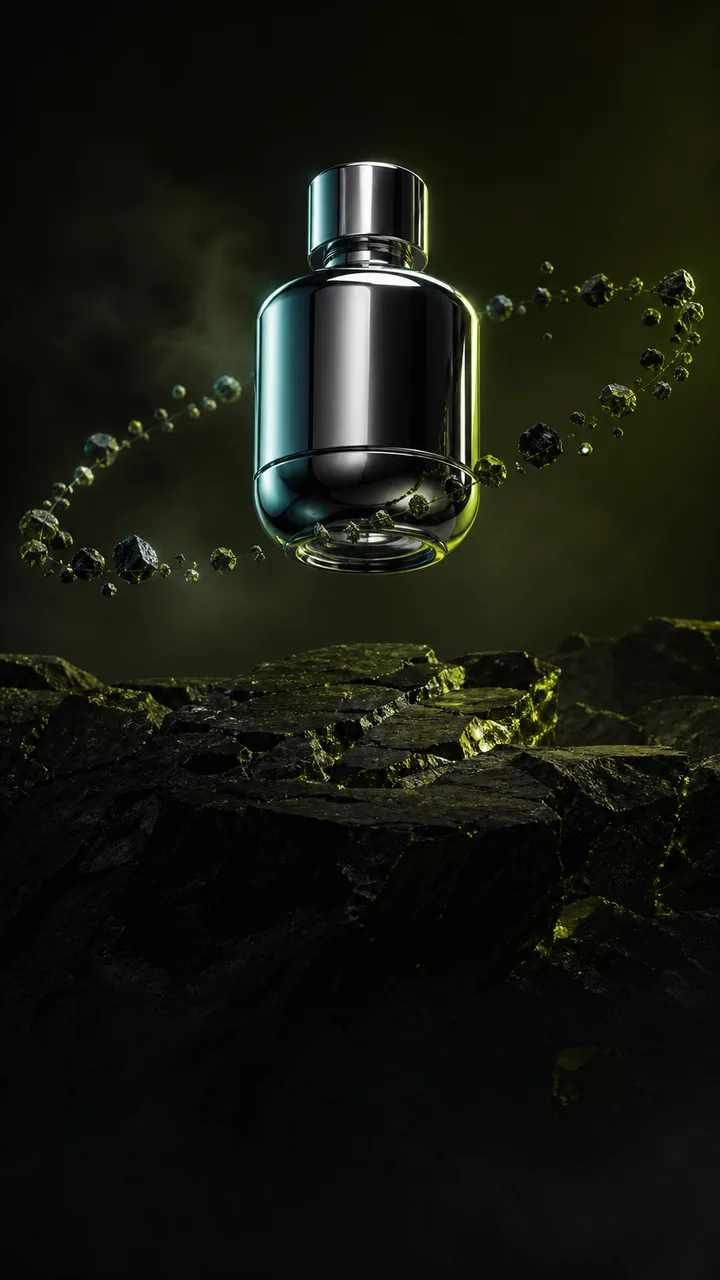
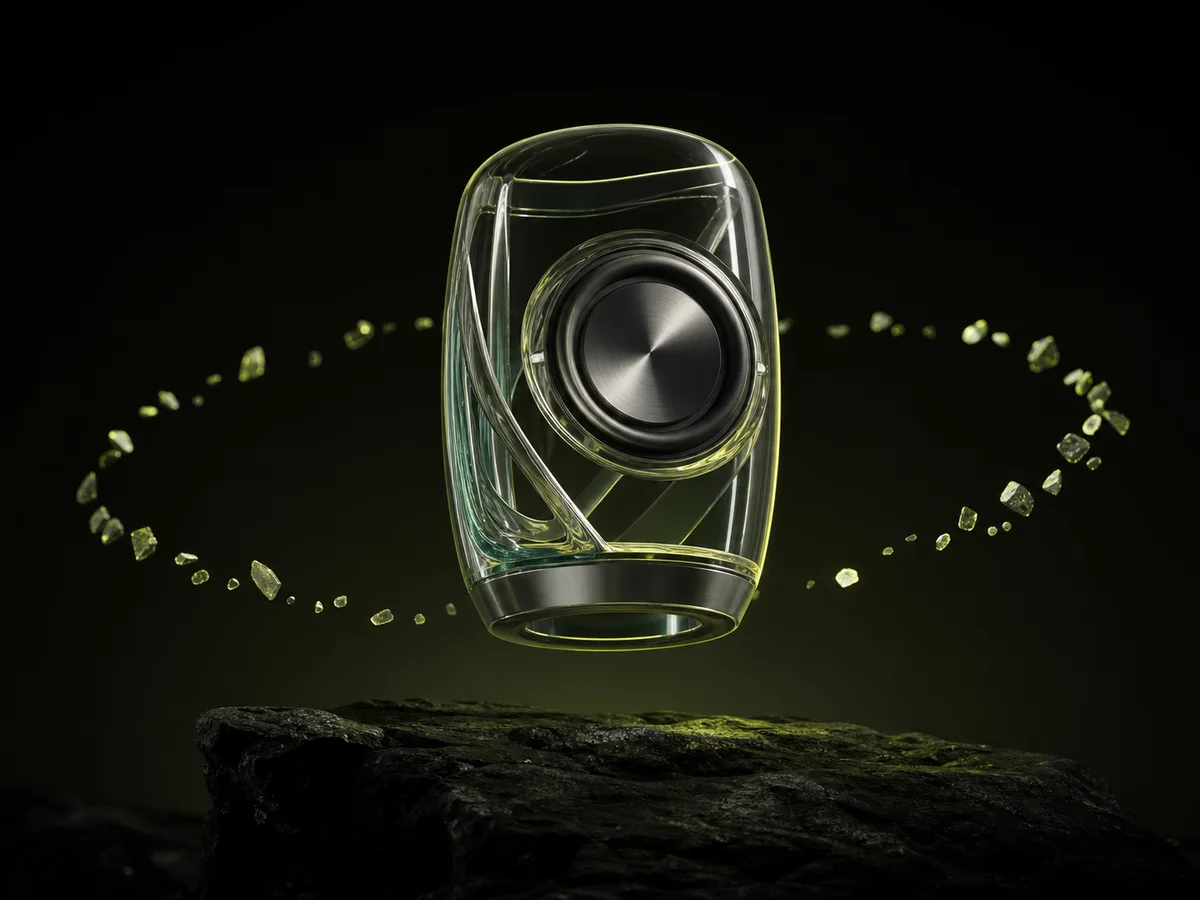
Product reveals, launches, and polished campaign motion.
Connect scenes through tactile, directional transformations.
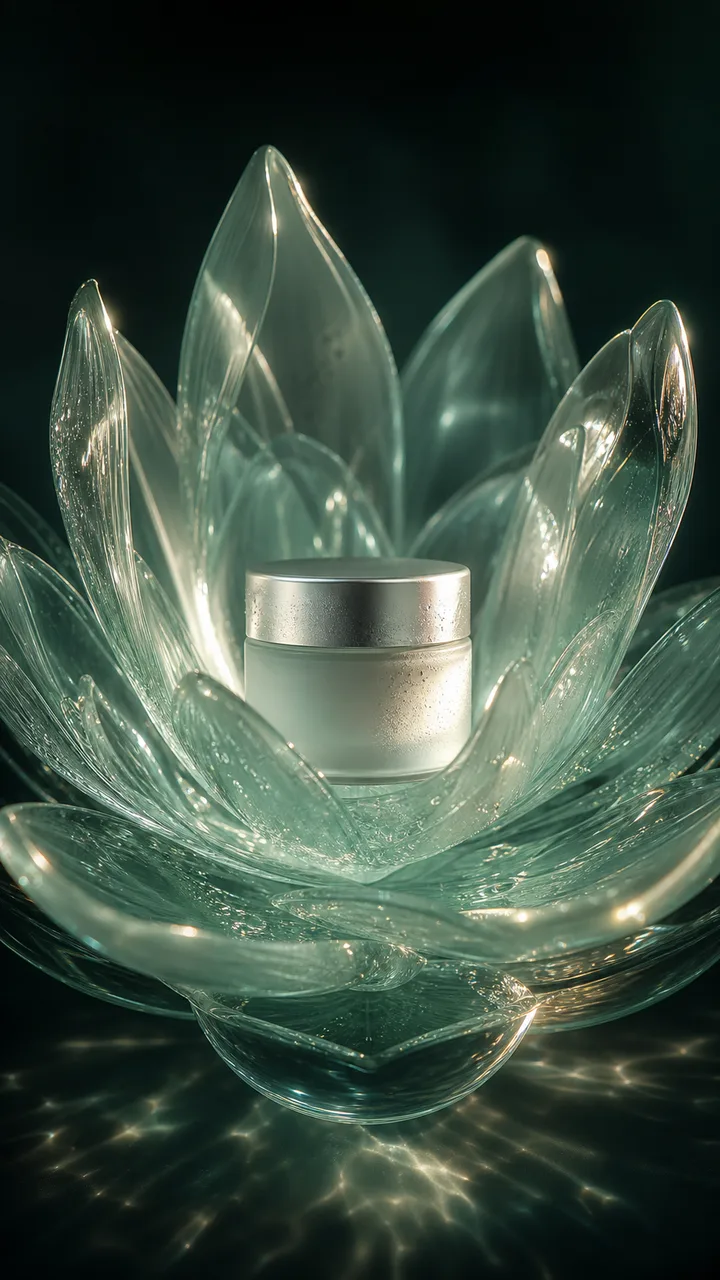
Material, light, and atmosphere treatments for a visible shift.
Directed pushes, tracks, rises, and spatial camera studies.
Focused gestures and performances built around one subject.
Fast-reading motion hooks for social-first creative drafts.
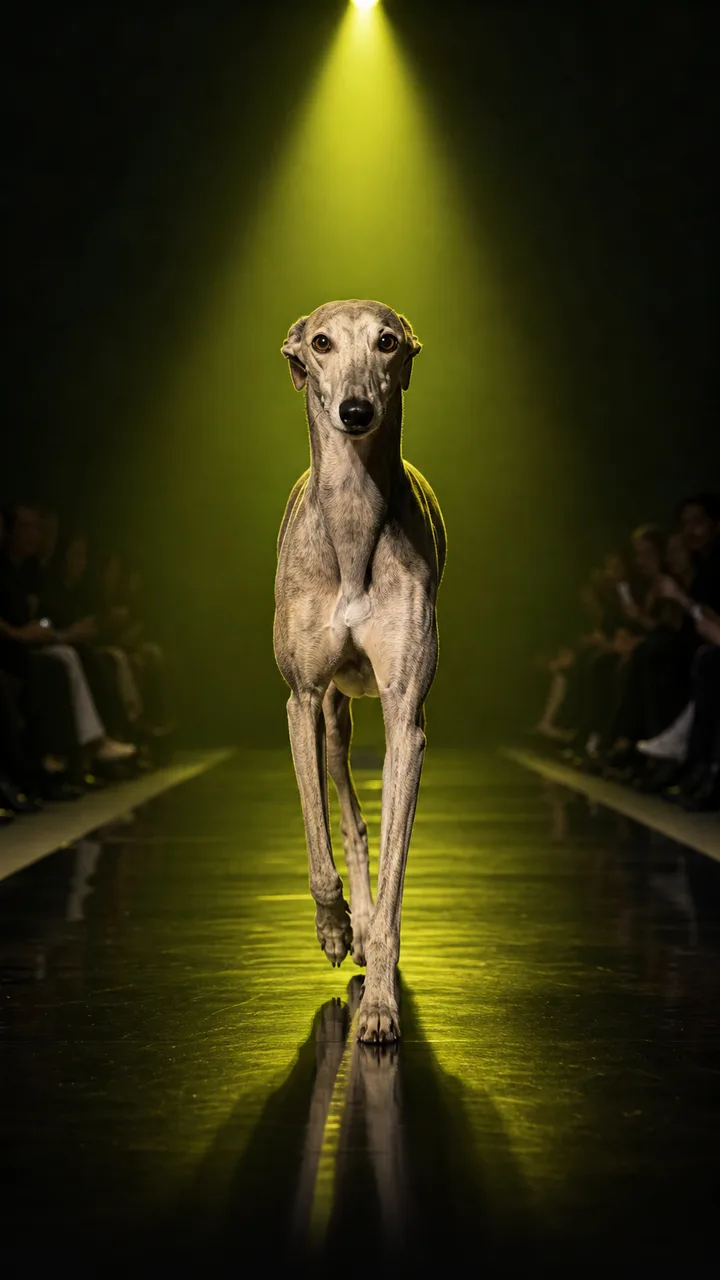
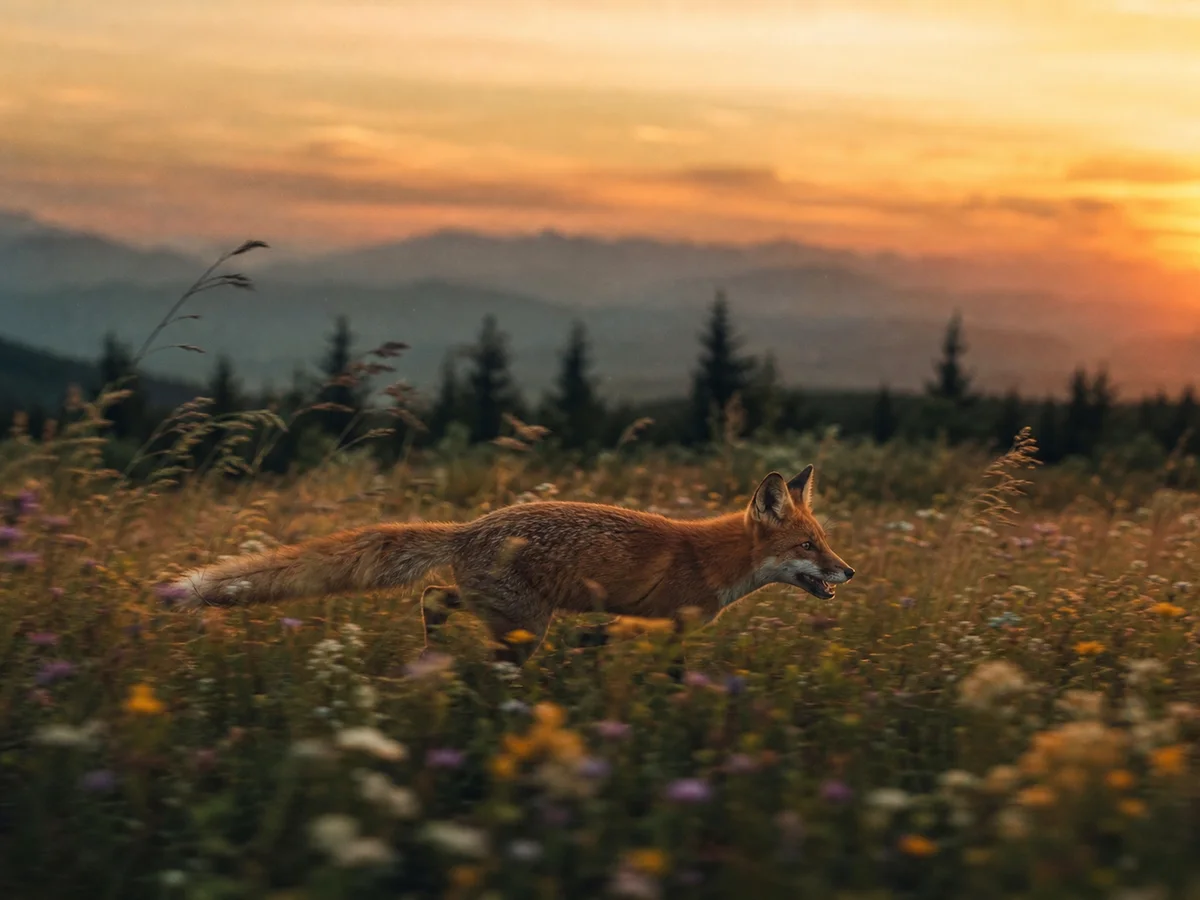
Playful entrances and camera movement for animal portraits.
Identity, material, and styling shifts with a clear focal subject.
Light, color, and sweeping motion for celebratory scenes.
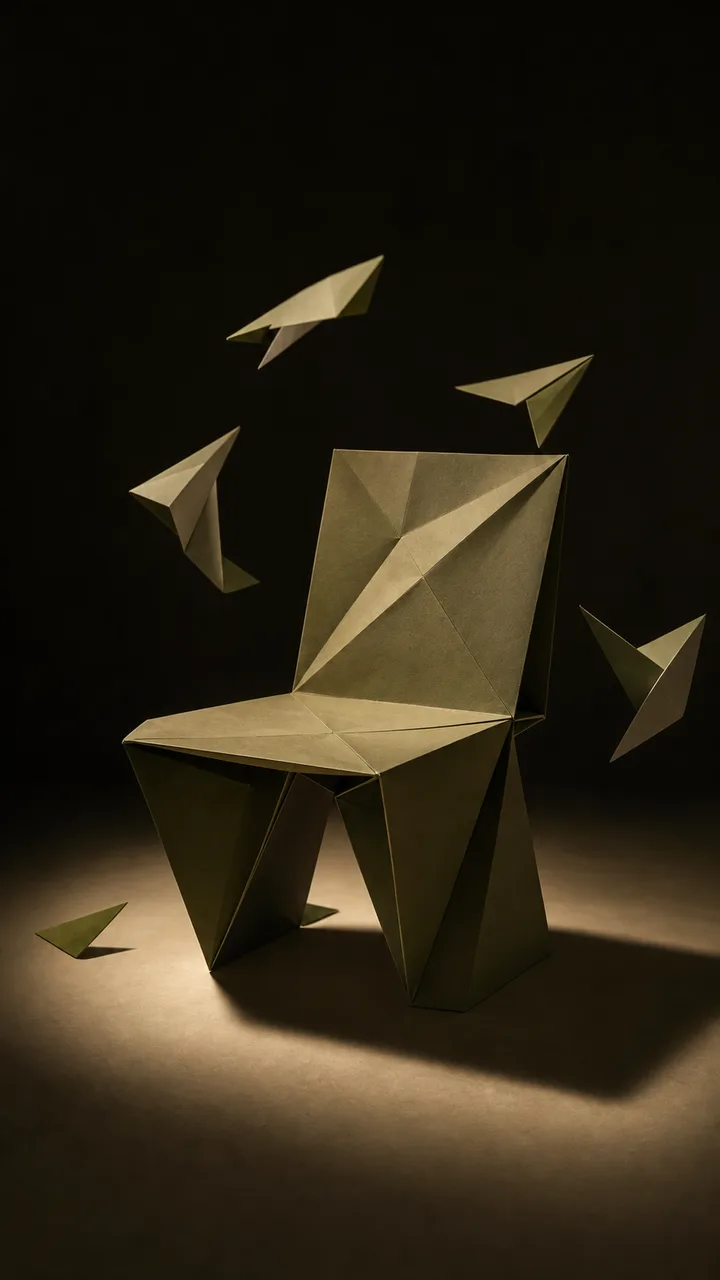
Illustrative materials and crafted transitions for art-led motion.
Stronger subject and camera movement for kinetic sequences.
Object, environment, and subject interactions with one readable beat.
How it works
An AI video effect on this page is a short motion study built from a still image you supply. You pick a preset, the preset carries the movement and camera language, and the model animates the frame you uploaded. Because the source image is the subject, what it already shows — a face, a product, a label — is what the model has to preserve.
Start with a single sharp photo: a product shot, a portrait, or a scene with one clear subject and room around it. Keep the important edges inside the frame, because the camera movement is applied to what is already in the picture.
Upload only images you own or are licensed to use. Faces, logos, packaging, and artwork in that photo stay your responsibility after generation, and the resulting clip is a new asset, not a licence for the source material.
Every card in the catalogue is a preset that names the movement, writes the prompt, and points at a family of compatible video models. Selecting a card is the direction step; you do not have to invent camera language yourself.
You can still change the settings in Studio, including the model family, duration, and aspect ratio. A preset describes an intended movement, so the same card can read differently on a different source image: treat it as a direction, not a fixed shot.
Duration, resolution, aspect ratio, and model choice all change what a run costs. Studio shows a binding credit quote for the job you configured, and that is the amount charged when you generate.
Credit estimates printed on catalogue cards are for comparison only; the quote in the draft is the one that counts. Current pack sizes and prices are on the pricing page.
Failed generations follow the Refund Policy. Credits released after a failed task are a balance correction recorded against the task ledger, not a cash refund, and the task record shows what was attempted.
Watch the full clip rather than the opening frame. Confirm that identity held — face, hands, body proportions — that nothing important was cropped at the edges, and that labels, prices, and small packaging text are still legible.
Then match the export to its destination. Each channel expects its own aspect ratio, duration, and safe area, and the format you need may differ from the ratio of the source image.
Start from a blank video draft and direct the scene, pace, and camera yourself.