
AI Product Photo Generator
Turn one source photo into a clean product shot, then into the full set of angles and crops a listing needs. The credit quote appears before anything runs, so you decide what each image costs.
Plan a Shopify product image setPlan a multi-SKU listing workflow
How a product photo is generated
- 1
Upload the source photo
Use a photo of your own product that you have the right to use. Start with a sharp file, the whole product in frame and even lighting. Review the generated shape, colour, material and label artwork against the real product before approving an image.
- 2
Read the credit quote
yito prices the run for the model, resolution, aspect ratio, and number of outputs you selected and shows that quote before submission. Change the settings until the quote matches what the image is worth to you.
- 3
Generate, review, download
Compare the result against the product itself and against the marketplace image rules you are targeting, then download the files you approve. A generation that fails on our side follows the published Refund Policy.
One photo in, a listing set out
The example below was produced in yito Studio from a synthetic amber serum product photo. It is a Studio example, not a customer result: it shows the shape of the workflow, from a single front-facing source file to the white-background hero images and supporting detail crops a listing page uses.
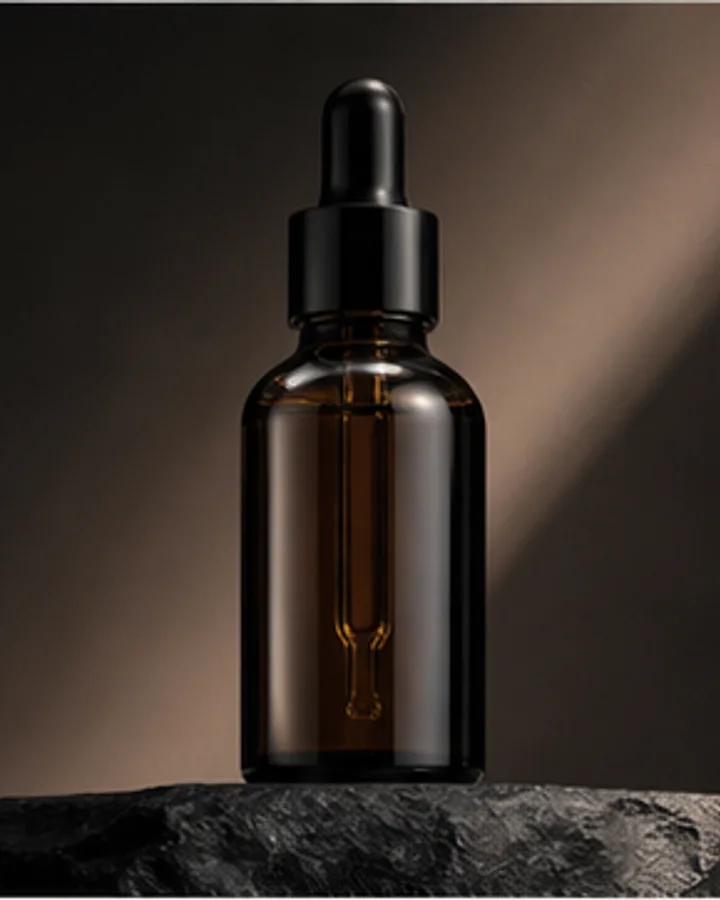
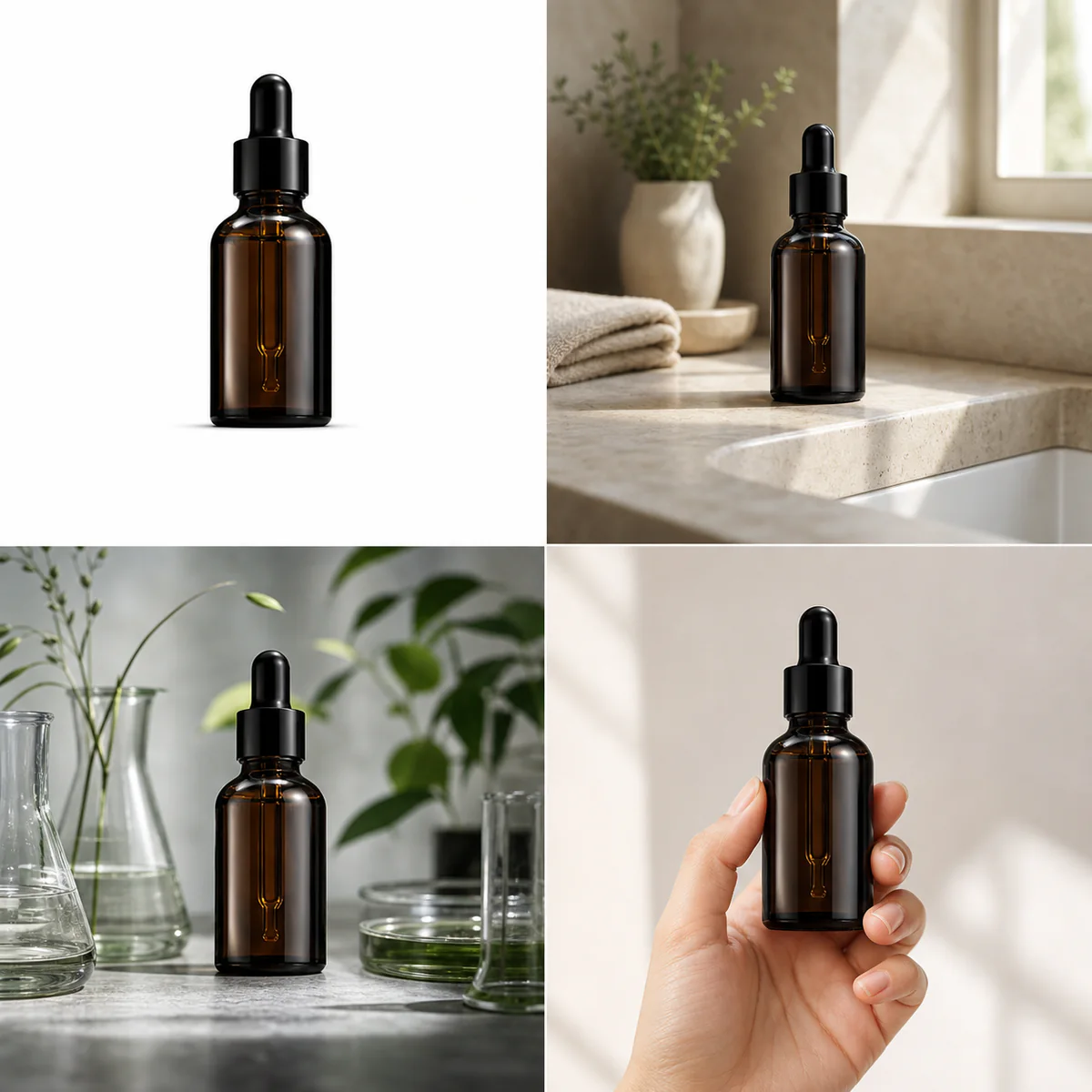
Synthetic Studio example. Replace it with your own product photo when you generate.
What you actually get
The generator produces the images a product page is built from rather than one decorative picture: a main image on a plain background, the angles that show construction and material, and the detail crops that answer the questions buyers ask before they order. The same source file can be reused for a second marketplace that wants different dimensions, so you are not re-shooting the product for every channel.
You can request several related outputs in one run. Compare the lighting direction, product height in frame and background treatment across the set, and approve only the images that represent your product accurately.
Marketplace sizes and background rules
Every marketplace states its own requirements, and getting them wrong is a common reason a listing is suppressed or a product is rejected at review. Amazon expects a working master of at least 1600 px with a pure white main image and the product filling most of the frame; Walmart asks for a larger square; Shopify stores are happiest with square product images around 2048 px.
The platform guides on this site list the working sizes, aspect ratios, and official source for 46 destinations, with the date each one was last reviewed, so you can generate at the size the channel actually accepts.
Review before you publish
Generated product content still needs a human check, because the marketplace holds the seller responsible for the accuracy of the image. Look at four things: does the product keep its real identity, including variants and accessories; is every label, ingredient line, and regulatory mark still legible and unchanged; does the background and framing satisfy the channel rule you are targeting; and does the exported file match the format, dimensions, and colour profile the channel expects.
Keep the approved files together with the source photo. When a product changes, you can regenerate from the same source and compare the two versions instead of guessing what moved.
How the credits work
One credit balance covers every model in the workspace. Comparing plans needs no account, generating and checkout do, and the pricing page states how many images and short videos each plan can produce as well as how long its credits stay valid.
Credits are reserved before generation. The task record distinguishes captured, released and still-held credits. An unresolved provider request may keep credits reserved while its outcome is checked; consult the task record for the settlement of that run.
Questions about the generator
- Do I need an account to generate a product photo?
- Comparing plans and browsing examples needs no account. Generating and checkout do, so the reserved credits and the finished files stay attached to a workspace you can return to.
- Which marketplaces are covered?
- The platform guides cover 46 destinations, including Amazon, Walmart, Google Merchant, Etsy, eBay, Shopify, TikTok, Instagram, and YouTube, each with working sizes and a link to the official source.
- Can I use the generated photos commercially?
- You can use them for products you have the right to sell and photograph. You remain responsible for the accuracy of the listing and for any marketplace or advertising rule that applies to the category.
- What happens when a generation fails?
- A qualifying provider or platform failure returns the reserved credits, following the published Refund Policy and the task history for that run. The reason for the failure stays visible in the workspace.
- Do credits expire?
- The pricing page states the validity window for each subscription and pack. One-time credit packs do not renew and their credits do not expire.
- Can I generate video from the same product photo?
- Only when a compatible video workflow is available in your workspace. Check its availability and credit quote before submitting. This page focuses on product images; review any generated output before you publish.
Start with the photo you already have
Open the product shot workflow, upload one source photo, and read the quote before you spend anything. If the quote does not fit the job, you can change the model, the size, or the number of outputs first.
Open the product shot workflow